The myth that panic, looting, and antisocial behavior increases during the apocalypse (or apocalyptic-like scenarios) is in fact a myth—and has been solidly disproved by multiple scientific studies. The National Earthquake Hazards Reduction Program, a research group within the United States Federal Emergency Management Administration (FEMA), has produced research that shows over and over again that “disaster victims are assisted first by others in the immediate vicinity and surrounding area and only later by official public safety personnel […] The spontaneous provision of assistance is facilitated by the fact that when crises occur, they take place in the context of ongoing community life and daily routines—that is, they affect not isolated individuals but rather people who are embedded in networks of social relationships.” (Facing Hazards and Disasters: Understanding Human Dimensions, National Academy of Sciences, 2006). Humans do not, under the pressure of an emergency, socially collapse. Rather, they seem to display higher levels of social cohesion, despite what media or government agents might expect…or portray on TV. Humans, after the apocalypse, band together in collectives to help one another—and they do this spontaneously. Disaster response workers call it ‘spontaneous prosocial helping behavior’, and it saves lives.
I’ve been sharing this article a lot recently! I think it’s important
also yeah the best feature tumblr has (or lacks, i guess) is the inability to see other people’s follower count. not knowing how many followers anyone has makes this site more fun it’s easier to pretend we’re all just like, hanging out in a cave together.
I’ve been asked about Dreamwidth, since I have a little time I’ll give a quick explanation, so you can decide if you’re interested in making one. I’ll skip on how to actually make one and all the setting, because I’m pretty sure there already are a thousand tutorials and I’m sure everyone knows how to join a social anyway.
So..like basically anything else Dreamwidth has different sections.
Recent Entries is what YOU post, basically your blog. Archive shows you your posts in a calendar, you can choose to simply see the number of posts for that day or to show the subject too (obviously if you’ve used a subject/title. You can use one for everything, not just text like here) Reading is where you actually see what the others posted. Tags is self explanatory, it’s a list of your tags, you click on one and it will show all the entries for that one (in your blog, it’s not a search tool). Memories is something in between a bookmark and a like. If you’re interested in a post you put it in your memories, to be able to find (and follow it) at any given moment. Profile is where everything about you is (we’ll get to that in a second)
So, now we’ll go to the profile page (EVERYONE can see this, non-members too).
Part 1 of the profile. There’s your blog title and subtitle, near the default icon (in the free version you can upload up to 15 icons, don’t remember about the payment account) and stuff like when it was created, the number of posts, comments left and received…basically all your statistics. Under it there’s the about, that basically shows what you can see, name (could be different from the name you’re using for your blog, like your real name – not that someone will write their real name there, lol, but I used Ginny), birthdate, location…that kind of things.
Part 2. First we have a bio. You can write whatever you want there, it needs basic html code for certain things like bold, italic, etc, and for photos to be hosted somewhere else (or like…copy the image link of the photo you posted somewhere else and paste that there between the classic html code for images). In my case the red “thingies” are hosted on photobucket. Dreamwidth gives you the opportunity to upload things on their own space, but I’ve never used that, so you’ll have to search for that yourself The bio is also a good place to put credits for your layout, if you’re using someone’s graphic as a header and so on. You want everyone who finds your account to know that you want to adopt all the cats or to ride an unicorn? The mini bio is the place to let them know! Go crazy, write whatever represents you! Under it there’s the “connect” section. Interests. You literally write what you’re interested in, separated by commas (ie. cats, dogs, unicorns, lasagna). This will get your blog in the search for those words (ie. you’ll appear if someone will search “cats”) and will work as a shortcut for you to search for others with that interest (instead than writing the word in “search” and click…not that it’s very tiring to do, but whatever, lol). Basically, be nice and try to stick to what you usually post about, if you post about cats and once a year you post the photo of a dog wouldn’t be so nice to lead people who likes dogs to follow you…
Under that there’s people (and communities)
People. Are the personal blogs, like mine. It’s divided in different section, that are: Gives access to. The people you want to see the post you’ll set as restricted (meaning you can decide to make a post visible ONLY to those people and not to strangers) Has access from.
Who let you see the posts they’ve set as restricted.
Subscriptions. The blogs you’ll see in your reading page. If a blog won’t give you access you can still subscribe to it and you’ll see their public posts. You can also decide you don’t want to see someone in your feed (maybe you like them but they usually posts things you’re not interested to), so you’ll grant them access to your blog, probably they’ll grant you it to theirs, but you’ll have to manually go to their blog to see the updates. That’s a feature I badly miss on tumblr. Subscribers. Is basically the same thing, who has you in their reading list.
Communities. The word is pretty self explanatory, they’re groups about a topic. Usually (like the 99% of the cases) any member can post (there are admin and moderators, if they know how to do their job the community will stay pretty and neat). Member of. Lets you know the communities you are in. Subscription. Is the comms you see in your reading page (again, you can be in a community, post in it and all but decide not to see it in your reading page, maybe because it’s huge and there are too many post a day, or whatever other reason) Administrator. The communities you started and the ones you are made admin of. Posting access. Obviously are the communities where you can post (the famous “usually 99% of them”)
Now we’ll get to the posts structure, just to give you a quick idea of what you can do there.
The first part is the entry itself. You can change the date, choose the icon, give the post a title. Then you can select “rich text” to have the bar with all the commands (like a Word sheet) or HTML (the one I used here, I have to code things by hand, like the < b > for bold and such). Obviously the two options “insert image” and “embed media” will only be present in the HTML version, the Rich Text has a button for it. Here, have the Rich Text bar
Now that you have happily written your post, inserted links, added photos, tables and all you scroll down and you have the second part.
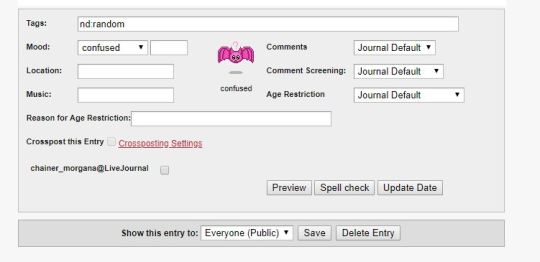
That’s the funny part, IMO. Tags (in this case I usually advice to use real tags and not the kind we use on tumblr to basically comment, since they’re a very useful tool to find your old posts) Mood. There are a lot of them or you can add one (the empty space). The icon can be changed, I chose the bat because I like bats, but there are a lot of them. Location whatever you want from “my bed” to “in China”, it’s not a gps location or anything. Music whatever you’re listening to. NOTE: all these can be left empty. Comments. Journal default is whatever you’ve decided in your settings about who can comment your post, but you can change it. You can choose, instead, to disable it for that post. Or not to have an email notification sent to you for that particular post. Comment screening. What comments will be visible? Other than the default you chose in the setting for every post you can decide to disable the thing, so all comments will be visible or to HIDE: anonymous comments, comments from people who don’t have access to your blog or all comments. Age restriction. Hot topic these days 😉 First of all in your settings you will already be able to decide if you’re a 18+ blog or not and why, but you can also say you’re not and simply restrict some posts. The choices are no restriction, viewer discrection advised and only 18+. As you can see under that, if you want, you can let people know the Reason for Age Restriction (a lot of things, not just porn, are 18+) Crossposting. I admit I don’t know what you can crosspost to, I had my lj, but things change. Anyway you can decide if post it on both the thing or just on DW. The “spell check” button is lovely 😉 Show this entry to will let you choose. To everyone, to your access list or to just keep it for yourself.
This post isn’t in any way comprehensive, but since I’ve been asked about dreamwidth I think it’s a good way to introduce you to the basics of what you can do, the privacy, mostly. Obviously it’s a lot more complicate than that, there are A LOT of features, I only showed how a post is made and the profile, but you can manage EVERYTHING, you can customize most of it, you have an inbox that will show you the new comments (there’s also a section to see them), who granted you access, who wants to join a community and so on…It’s a pretty complicate platform, nothing that can be explained in a post.
If you need any information don’t hesitate to ask, and if you think this post can be useful then share it! thanks!
This is an excellent introduction, and I agree that Dreamwidth has many more features to discover as you use it. But I want to highlight one in particular: in addition to the privacy controls mentioned above, Dreamwidth lets you create custom filters for both posting and reading. You can restrict your content to different subsets of your access group and/or read different subsets of the journals you follow. Once you’ve created the filters, it’s easy to select and change them as you like.




 Site Title